Nano Banana 2.1 Image Generator for Storyboards
Nano Banana 2.1 is Google’s image model for generating stills and editing reference photos. On Omni AI Video, use it to plan a shot sequence, keep a character recognizable, and choose the opening frame for a video.
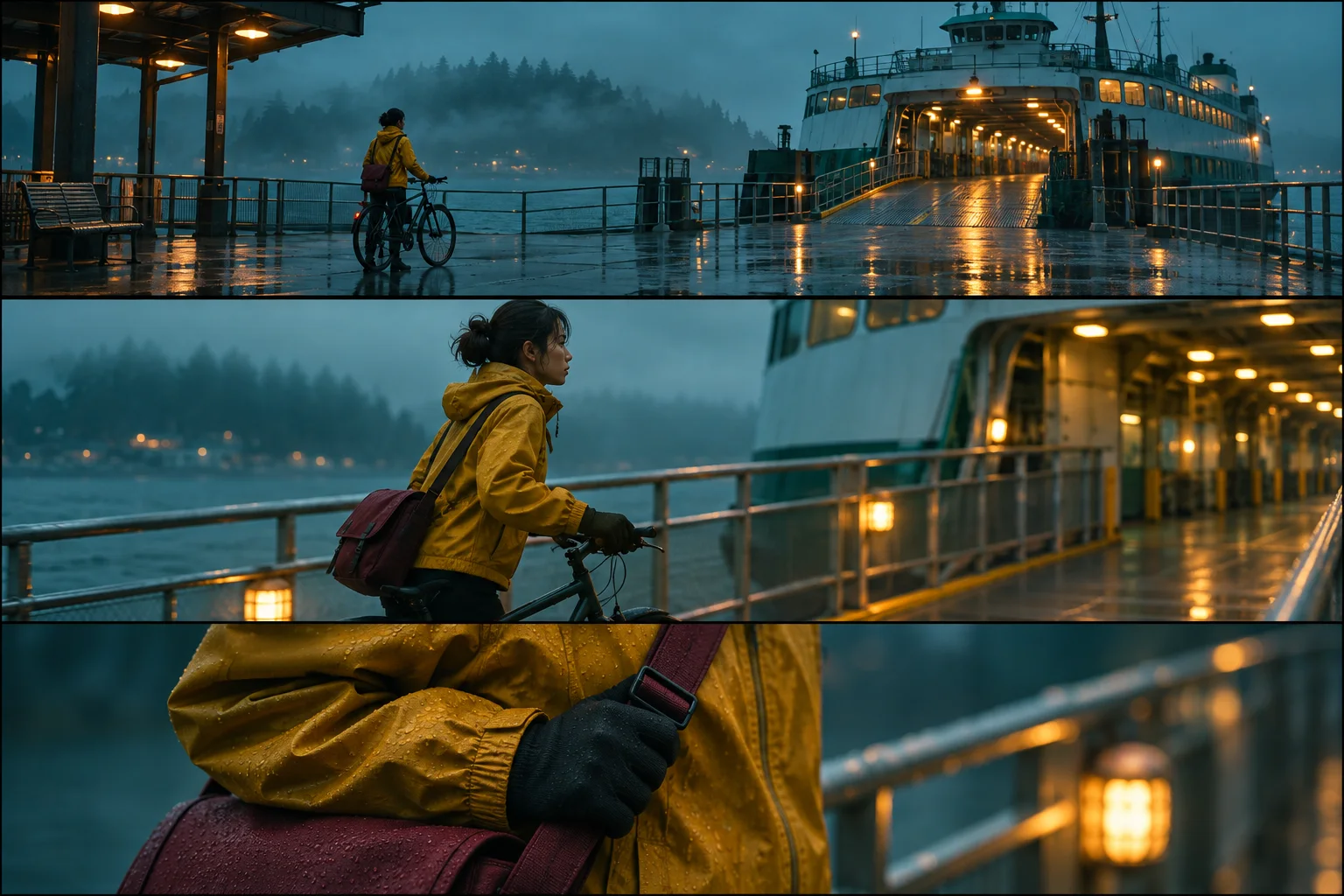
Plan three stills for one scene
At a ferry terminal, the first shot tells us where the courier is. The second shows where she is headed. The third brings our attention to the strap she grips as she reaches the ramp. In the storyboard above, the yellow jacket and burgundy bag connect all three views even when her face leaves the frame.
Start in the image generator. For a scene you have already designed, upload a character reference in image-to-image mode. For an original scene, switch to text-to-image and establish the character and location in the wide shot. Save the frame you choose. It gives later shots a concrete reference for the palette, weather, and direction of the light.
| Shot | What to change | Continuity cue to keep |
|---|---|---|
| Wide establishing view | Show the courier beside the ferry ramp, with open space toward the vessel. | Wet pavement and warm deck lights establish the time of day. |
| Medium profile | Bring the camera level with the courier and show her approaching the ramp. | Keep her moving in the same screen direction and retain the bag on the same hip. |
| Close detail | Frame the gloved hand gripping the strap. | Match the jacket cuff, strap color, and side lighting to the medium shot. |
Generate each usable shot on its own canvas. A row of storyboard panels is convenient for review, while separate images let you revise a close-up without rebuilding the establishing shot. Set 16:9 for a landscape sequence or 9:16 for a vertical cut before placing the subject.
Direct the next Nano Banana 2.1 edit
Give the character reference and the scene reference different jobs. The portrait supplies the face and wardrobe. The approved wide frame supplies the ferry, the weather, and the light. Request one camera change at a time. For the medium shot, specify which shoulder faces the camera and leave space in front of the courier.
If a new shot looks plausible but feels wrong in sequence, compare the two frames edge to edge. A flipped strap or a ferry ramp on the opposite side can make the viewer read the movement as a change of direction. Return to the last approved frame and name that detail in the revision.
Choose a model for stills and motion
Nano Banana 2.1 vs Nano Banana 2. Google’s 2.1 update improves consistency through successive edits, which makes a change of camera angle a useful place to try it. For an established sequence made with version 2, keep the approved frames and use one missing shot to see how well 2.1 matches the wardrobe and lighting.
Nano Banana 2.1 vs Nano Banana Pro. Start with 2.1 for alternate framings of the same character. Try Pro for a more complex staging problem, such as a courier in the foreground handing a parcel to a deckhand across a rail. Give both models the same character references and compare the parcel, the hands, and which side of the rail each person occupies. Choose the still that makes the action clear at a glance.
Take an approved frame into image-to-video
Download the chosen still. Open the AI video generator, select image-to-video and a model that accepts a starting image, then upload the single frame. Put movement in the video instruction. For the wide view, ask for a slow push toward the ferry while the courier walks toward the ramp. Save the close-up for a separate shot if you want a clean cut to the strap.
Frequently Asked Questions
Compose your opening shot
Start with a character reference or describe the first thing the viewer should see.
Create a storyboard frame